

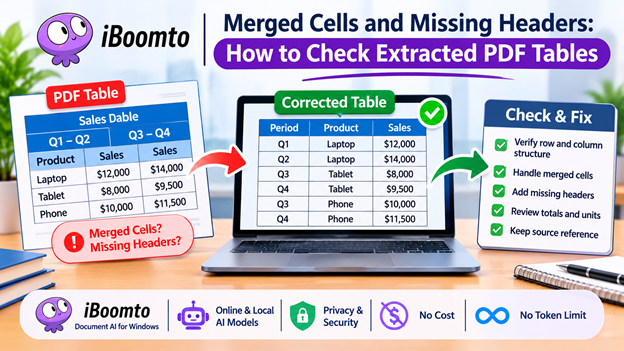
PDF tables aren’t necessarily easy to parse. The original PDF may have merged cells, multiple headers, grouped categories, or common column headings. That may have made the information in the PDF easy to read, but it can cause problems when you extract the table to a spreadsheet.
Sometimes the merged heading becomes a new row, the column headings disappear, or the values end up under the wrong column headings. The information may be extracted in a very neat and orderly fashion, but it’s not necessarily the correct information.
That’s why you need to check the structure of your table after extraction. With a bit of careful editing, it can go from a rather confusing spreadsheet to a very useful one.
Understanding Merged Cells and Multi-Row Headers
If a heading is covering more than one column or row, it’s usually merged. A sales report, for instance, might have a heading of ‘Quarterly Sales’ with 4 separate columns (Q1, Q2, Q3, Q4) to fill in.
This table will be split when it’s extracted and may not be joined to all four columns. The worksheet may contain values for the quarter without actually specifying which quarter that is.
Multi-row headers have the same issue. The first row of the table could be a general row of measurements and the second row could be a row headed by individual measurements. If those two rows are incorrectly split, then the column headers will be truncated.
It’s useful to understand the layout in the original file so that the data can be used without running into that sort of problem.
Introducing iBoomto for PDF Table Extraction
iBoomto PDF table extractor is a Windows-based Document AI document processing and information management solution designed to make document processing easier. It can run either on-premises AI models or online AI models, giving users the flexibility to work in the way that suits them best depending on their internet connection and processing requirements.
It has an AI Table Extractor which will pull the structured data out of the PDF without you having to copy each row. Comes in really handy when you’re dealing with long reports, research papers, etc which will have several tables in them.
It also looks at the privacy and security implications of document processing. You can choose between an online and a local AI workflow depending on your requirements. Another nice feature is that it’s completely free with no token limits, so you can use it for all your documentation needs.
How to Check and Correct Extracted Tables
Extracting a table from a PDF is just the first step. The next step is to establish whether the original structure of the table has been maintained.
1. Compare the Original Header Structure
Locate the original PDF and have a look at the full table heading. Work out whether it has a multi-level structure or is just a standard topic.
If, for instance, “Annual Performance” spans three columns with the years, then the spreadsheet you end up with from that must reflect that relationship.
2. Identify Missing Column Names
Ensure that every data column has a sensible “label”. If a heading doesn’t contain any information, it can be very confusing as to what any particular number in that column refers to.
If there’s no heading, use the original PDF and create one from scratch. Don’t infer the name of the column from the values in the column.
3. Handle Merged Cells Carefully
If you’re extracting a common heading in isolation from the rest of the data, then you may want to consider designing individual column names that describe the column.
For instance, the columns can be arranged as such instead of having one merged column labeled “Quarterly Sales”:
- Sales – Q1
- Sales – Q2
- Sales – Q3
- Sales – Q4
This helps to tidy up the spreadsheet when it comes to understanding, sorting, and analysing.
4. Check Whether Values Match Their Columns
Check each row to ensure the value is in the correct heading. Be particularly careful with any tables that have aggregated categories, dates, percentages, and monetary data.
Before you go and make the corrections, just check that the number is in the right column.
5. Preserve the Original Meaning
The format of the data must never be changed to alter the meaning of the data. Units, definitions, reporting periods, and footnotes must all be included with the extracted data.
If you don’t understand the heading, go back to the original document rather than invent an explanation without any supporting evidence.
Why Manual Review Still Matters
Whilst you can obviously reduce the amount of repetitive work involved in extracting data from PDFs via AI, each format has its own set of problems. Some docs are going to require a bit of extra care due to the nature of the scanned text, the headers, the merged cells, the odd spacing, etc.
Students can check these out to make sure their work and research are accurate when doing their assignments. Professionals must use a financial report, a set of business records, or some technical documentation to extract the information they need.
It’s also easier to check in the future that the original PDF copy of the spreadsheet is still there.
Conclusion
Cells that are merged and the lack of headers are two of the problems you can run into when converting a PDF table to another format. It can be much easier to do this using an extraction tool, but you do need to check the structure of the original table before you go ahead and reuse the information.
The iBoomto Document AI functionality, Windows integration, versatile online and local AI models, and easy-to-use, no-cost implementation are all valuable features to begin with. It also has a no-token-limit option, which could be a consideration for regular documentation.
The optimal strategy is to extract, inspect, correct, and verify. Don’t assume that all tables are created with the same precision, but take time to review the column relationships, merged cells, and table headings. This way, your spreadsheet will be easy to read and, most importantly, will reflect the data in it.
